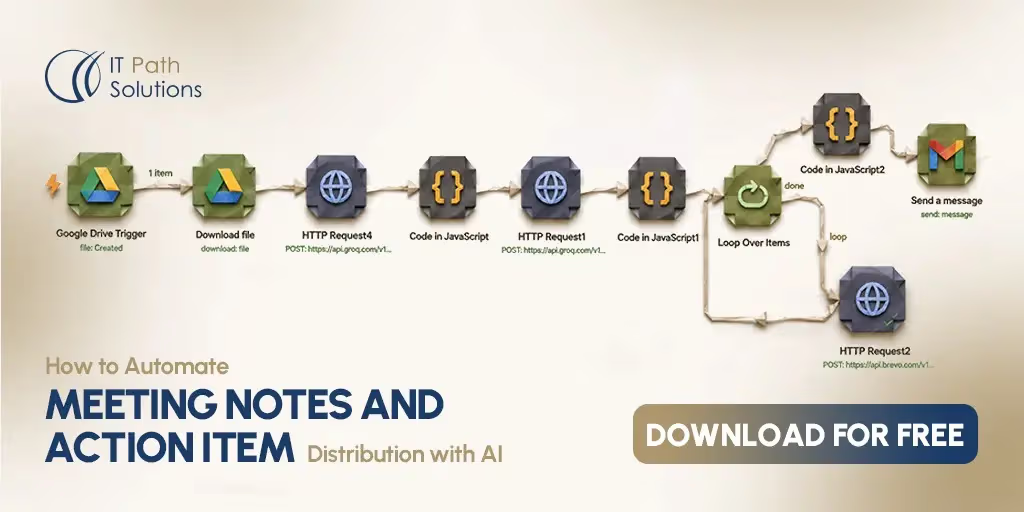
How to Automate Meeting Notes and Action Item Distribution with AI
Keyur Patel
July 21, 2026
21 min
Last Modified:
August 19, 2026
Every team runs into the same problem after a meeting ends. The conversation may have been productive, decisions were made, and next steps were discussed, but someone still has to turn all of that into usable documentation. That usually means listening back to the recording, writing meeting notes, identifying action items, assigning owners, and copying tasks into a project management tool.
In practice, that work often happens hours later, gets rushed, or never gets completed at all. Important decisions get buried in chat threads, action items are forgotten, and teams leave the meeting with different understandings of what was actually agreed upon.
If the goal is to automate meeting notes without adding more manual administrative work, an AI-powered n8n workflow can handle the entire process from end to end. Instead of relying on someone to capture everything by hand, the workflow watches for new meeting recordings, sends the audio for transcription, uses AI to generate a structured summary, extracts decisions and action items, identifies owners and deadlines when they are mentioned, and then distributes the results automatically.
In this article, you will see a ready-to-use n8n workflow that turns a recorded meeting into a clean, searchable summary and an actionable task list. The workflow covers the full pipeline: detecting a new recording, transcribing the conversation, generating concise meeting notes, extracting decisions and action items, emailing or sharing the summary with attendees, and creating tasks automatically in your project management platform. You can download the workflow, connect it to your preferred tools, and adapt it to internal standups, client calls, sales meetings, sprint reviews, or executive discussions.
Who Should Use This AI Meeting Notes Workflow?
Meetings only create value when the outcomes are documented and acted on. Without a consistent process, decisions are forgotten, action items are missed, and teams spend extra time asking for updates. This workflow automates the post-meeting process, making it easier to capture discussions, assign tasks, and keep everyone aligned without additional manual effort.
Who This Workflow Is For
This workflow fits any team that runs regular meetings and struggles to keep notes and follow-ups consistent. That includes project managers who need a reliable record of decisions, operations teams juggling multiple recurring calls, agencies that run client meetings back to back, and founders who do not have time to write recaps after every call. If your meetings produce decisions and tasks that need to go somewhere other than someone’s memory, this workflow is built for you.
It is also useful for anyone already recording meetings through Zoom, Google Meet, or a phone recorder and saving those files to Google Drive. The workflow picks up from there, so no extra recording setup is required.
When This Workflow Becomes Useful
The value becomes obvious once meeting volume increases. A single weekly meeting is easy to summarize by hand. Five or six meetings a week across different projects is where manual notes start to break down.
This automation is most useful for teams running daily standups, client check-ins, sprint reviews, or sales calls, where the same summarize-and-assign pattern repeats over and over and small delays in follow-up start costing real time.
Why Teams Need Automated Meeting Notes
Most teams have a reliable process for scheduling meetings but not for documenting them. The work that happens after the meeting often relies on one person to summarize discussions, identify action items, and distribute updates. That approach may work for occasional meetings, but it quickly becomes inefficient as meeting frequency increases.
How Meeting Notes Are Usually Managed
In most companies, meeting notes still work the same way they did years ago. Someone takes notes during the call, or tries to recall the discussion afterward. They write a summary, list out who is responsible for what, and then manually send that summary by email or post it in a chat channel. Action items usually get typed into a task tool one by one, if they get tracked at all.
This process depends entirely on one person remembering to do it, doing it accurately, and doing it soon enough that the details are still fresh.
Why This Becomes Difficult to Scale
The manual process works fine for one or two meetings a week. It stops working once a team runs multiple meetings a day across different projects and stakeholders. Writing a clear summary and extracting accurate action items takes focus, and that focus is hard to maintain across back-to-back calls. The person responsible for notes often becomes a bottleneck, and if they are out sick or busy with something else, notes simply do not go out.
As headcount grows, so does the number of meetings, and the gap between what was discussed and what actually gets documented and assigned tends to grow with it.
What Usually Breaks or Gets Missed
A few things go wrong consistently with manual note-taking. Action items get mentioned in conversation but never written down. Owners are unclear, so a task sits with no one responsible for it.
Due dates are vague, like “let’s get this done soon,” and never turn into an actual deadline. And because notes usually live in an email thread or a document, there is no central place to see what is still open across all your meetings.
How This AI Meeting Notes Workflow Works
Rather than connecting just one or two tools, this workflow automates the complete post-meeting process. It combines AI-powered transcription, summarization, task extraction, and workflow automation to ensure every meeting ends with clear documentation and tracked follow-up work.
What This n8n Workflow Does
This workflow turns a raw meeting recording into a finished summary and a set of tracked tasks with almost no manual effort. It watches a Google Drive folder for new recordings, transcribes the audio using an AI speech-to-text model, sends that transcript to a language model that extracts a summary, key decisions, and action items, then automatically emails the summary and creates a task card for every action item.
The result is that within minutes of a meeting recording landing in your Drive folder, your team has a written summary in their inbox and every action item sitting in a tracked task board with an owner and a due date.
Key Steps in the Automation
The automation runs in five stages.
- Detect a new recording file.
- Download that file and transcribes the audio into text.
- Send the transcript to an AI model with instructions to return a structured summary, a list of decisions, and a list of action items.
- Convert natural language due dates like “by Friday” or “end of day” into real calendar dates.
- Distribute the results by emailing a summary and creating individual task cards for each action item.
Skip the Manual Build
Wiring together a file trigger, a transcription call, an AI summarization prompt, a date parser, and two distribution steps takes real setup time if you start from a blank canvas. Get the finished workflow and skip straight to configuring it for your own accounts.
Download the WorkflowTools and Integrations Used
The workflow connects Google Drive, Groq’s Whisper transcription model, Groq’s language model for summarization, Gmail, and Trello.
- Google Drive acts as the trigger and file source.
- Groq handles both the audio-to-text transcription and the AI reasoning that extracts summaries, decisions, and action items.
- Gmail sends the finished summary.
- Trello receives the individual action items as cards.
Every one of these can be swapped for an equivalent tool, which is covered later in the customization section.
What You’ll Get Inside the AI Meeting Notes Workflow Works
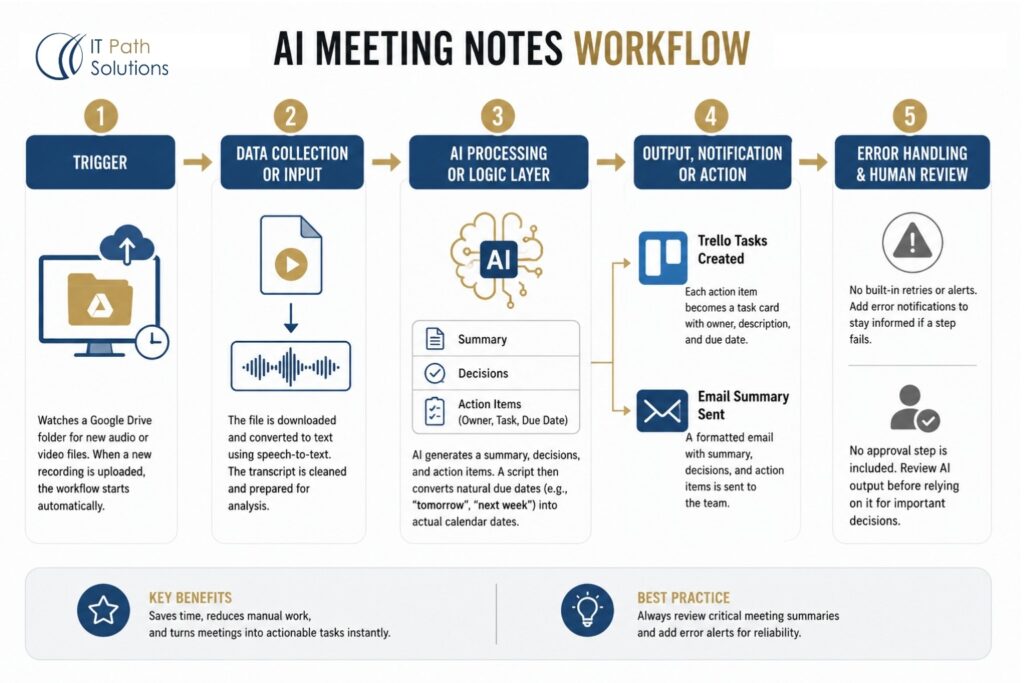
The workflow follows a simple sequence where the output of one step becomes the input for the next. This modular approach makes it easy to understand, troubleshoot, and customize while keeping the entire meeting documentation process fully automated.
Trigger
The workflow starts with a Google Drive trigger that watches a specific folder, checking for new files roughly every minute. As soon as a new recording is uploaded to that folder, whether that is an audio file or a video file with an audio track, the workflow fires automatically.
There is no manual step required to kick things off. You upload the recording, and the automation takes it from there.
Data Collection or Input
Once triggered, the workflow downloads the new file directly from Google Drive. That file is then sent to a speech-to-text model, which converts the audio into a plain text transcript. A small script pulls that transcript out of the response and prepares it as clean text for the next stage. This step is what allows the rest of the workflow to work with a raw recording instead of requiring someone to type up notes first.
AI Processing or Logic Layer
This is the core of the automation. The transcript is sent to a large language model with a specific instruction: return a short summary, a list of decisions made during the meeting, and a list of action items, where each action item includes an owner, a task description, and a due date. The model is instructed to respond with structured data only, nothing else, which makes the output easy to work with programmatically.
A follow-up script then parses that response and does something that a lot of similar workflows skip entirely: it converts natural due dates into real ones.
If the AI extracts a due date like “tomorrow,” “next week,” “Friday,” or “end of day,” the script calculates the actual calendar date for it. This matters because task tools do not understand phrases like “next week.”
They need an actual date to schedule against, and this logic bridges that gap automatically.
Learn by Using the Workflow
Reading about prompt design and date parsing logic only gets you so far. Import the workflow, open each node, and see exactly how the transcript turns into structured summaries and real due dates.
Get the WorkflowOutput, Notification, or Action
Once the summary and action items are ready, the workflow splits into two jobs. For every action item extracted from the meeting, it creates a task card on a Trello board, using the owner and task description as the card title and the calculated date as the due date. This means each responsibility from the meeting becomes a visible, trackable card without anyone typing it in by hand.
At the same time, the workflow sends a single formatted email containing the meeting summary, the list of decisions, and the full list of action items with their owners and due dates. This gives the team a readable recap in their inbox, while Trello handles ongoing tracking of who owes what.
Error Handling and Human Review
As configured, this workflow does not include built-in retry logic or error notifications, so if a step like the transcription call or the AI request fails, the run will stop rather than automatically recover. It is worth adding your own error handling, such as an error trigger that alerts you if a run fails, especially if you plan to rely on this daily.
The workflow also does not include an approval step before the summary and tasks go out, which is by design for speed but means the AI’s output is not manually checked before it reaches your team. For most meetings this is fine, but for calls involving major decisions, it is worth a quick read-through of the summary before treating it as the final record.
How Teams Benefit From AI Meeting Notes
Automating meeting notes is about more than saving a few minutes after every call. It creates a consistent process for documenting discussions, assigning responsibilities, and keeping follow-up work visible across the team. The result is less administrative effort, better accountability, and faster execution without changing how your team already runs meetings.
Time Saved
The most direct benefit is time. Writing a meeting summary and assigning action items by hand can easily take fifteen to thirty minutes per meeting once you include reviewing the recording. Multiply that across every meeting a team runs in a week and it adds up to hours of work that this workflow removes almost entirely. The only manual step left is uploading the recording, which most people already do.
Better Accuracy or Consistency
Manual notes vary depending on who is writing them, how tired they are, and how well they were paying attention. An automated summary follows the same structure every time. Every meeting gets a summary, a decisions list, and clearly assigned action items in the same format, which makes it easier for anyone on the team to scan a recap and know exactly what happened, even if they were not on the call.
Faster Response or Execution
Because the workflow runs within minutes of a recording being uploaded, action items land in Trello and inboxes almost immediately after a meeting ends, not hours or days later. That speed matters when a decision needs to move forward quickly or when a client is waiting on next steps. Fast, automated follow-up also signals professionalism, since nothing depends on someone remembering to write it up later.
Easier Reporting and Visibility
With every action item automatically created as a Trello card, you get a running, centralized view of everything that came out of your meetings. Instead of digging through old email threads to find out what was agreed on three weeks ago, you can look at the board and see exactly what was assigned, to whom, and by when.
Ready-to-Import Workflow
This workflow is already built and tested for the transcription, summarization, and task creation flow described above. Import it into your n8n instance and connect your own accounts in minutes.
Import the WorkflowCustomize the AI Meeting Notes Workflow for Your Team
The workflow works well as provided, but it is also designed to be extended. You can connect different cloud storage providers, project management platforms, and communication tools, or customize the AI logic to capture the information that matters most to your organization.
Tools You Can Swap or Add
Every tool in this workflow can be replaced without changing the core logic. Google Drive can be swapped for Dropbox or OneDrive as the trigger source. The transcription and summarization model can be swapped for OpenAI, or another provider if you prefer a different model or already have an API key set up. Gmail can be replaced with Outlook or a Slack notification, an d Trello can be swapped for Asana, ClickUp, Monday, or any project management tool with an API.
Business Rules You Can Modify
The prompt sent to the AI model controls what gets extracted, so you can adjust it to pull out additional fields like priority level, department, or meeting type. You can also change the due date logic if your team uses different shorthand, or adjust the transcript length limits if your meetings tend to run long.
Approval Steps You Can Include
If you want a human check before the summary goes out, you can add an approval step between the AI processing stage and the distribution stage. This could be as simple as a Slack message asking someone to approve the summary before it emails out, which is a good option for teams handling sensitive client meetings or high-stakes decisions.
Reporting or Analytics You Can Add
You can extend the workflow to log every meeting summary and action item into a Google Sheet, Airtable base, or Notion database. This creates a searchable history of every meeting over time, which is useful for spotting recurring blockers, tracking how often deadlines are met, or simply having a permanent archive that does not depend on scrolling through old emails.
Customize Instead of Building
Starting from a working template means you are editing a proven flow instead of designing one from a blank screen. Swap tools, adjust the prompt, or add an approval step without touching the parts that already work.
Download and CustomizeThings to Consider Before Using This Workflow
The workflow is designed to run with minimal manual effort, but there are still a few factors that can affect its performance. API usage limits, recording quality, security requirements, and occasional AI inaccuracies are all worth considering before using the workflow in a production environment.
API Limits and Tool Restrictions
The AI models used for transcription and summarization, along with Gmail and Trello, all have their own rate limits and usage restrictions depending on your plan. If your meeting volume is high, it is worth checking the request limits on each service so the workflow does not stall during a busy week.
Data Quality and Prompt Accuracy
The quality of the summary depends heavily on the quality of the recording. Background noise, overlapping speakers, or poor audio quality can reduce transcription accuracy, which then affects how well the AI can extract decisions and action items.
The extraction prompt is also doing a lot of interpretation, so vague statements in a meeting may occasionally get pulled in as action items when they were not meant to be firm commitments.
Security, Permissions, and Compliance
Meeting recordings and transcripts often contain sensitive business information, so it is worth reviewing who has access to the Google Drive folder being watched and where transcripts are stored or logged.
API keys and account credentials used in this workflow should be stored securely through your automation platform’s credential system rather than hardcoded anywhere, and if your meetings involve regulated information, it is worth confirming that your AI provider’s data handling policies meet your compliance requirements.
Download the AI Meeting Notes n8n Workflow
What’s Included in the Download
The download includes the complete n8n workflow file, ready to import. This covers:
- The Google Drive trigger
- The transcription and summarization steps
- The custom logic that converts natural language due dates into real dates
- The Gmail and Trello distribution steps
All the node configurations and the date-parsing script are already built, so you are not writing that logic from scratch.
How to Use the Template
- Import the JSON file into your n8n instance
- Connect your own credentials for Google Drive, your chosen AI provider, Gmail, and Trello.
- Update the folder ID to point at your own meeting recordings folder
- set the recipient email address, and point the Trello step at your own board and list
Once your credentials and IDs are in place, the workflow is ready to run.
Start Automating Immediately
Everything from the trigger to the task creation logic is already configured. Connect your accounts, update a few fields, and your first automated meeting summary can go out today.
Get the Free WorkflowNeed This Customized for Your Business?
This workflow covers a common, straightforward use case well, but some teams need more. That might mean routing summaries to different people depending on which project the meeting was about, integrating with a CRM instead of Trello, adding multi-step approval chains, or handling multiple output channels at once. Templates are a strong starting point, but they are not always built for that level of complexity out of the box.
How IT Path Solutions Can Help You Deploy It Properly
If your requirements go beyond this template, the team at IT Path Solutions can help design and implement workflows tailored to your business. From AI-powered meeting assistants and intelligent document processing to multi-step business automations and custom integrations, our specialists build solutions that fit naturally into existing workflows instead of forcing teams to change how they work.
Alongside workflow automation, IT Path Solutions also provides AI development services for organizations looking to build intelligent applications, AI agents, generative AI solutions, and enterprise automation systems. Whether you’re exploring your first AI initiative or expanding existing automation across departments, the focus is on creating practical, scalable solutions that deliver measurable business value while remaining easy to maintain as your business grows.
Build a Complete AI Automation Stack
From marketing and lead generation to content publishing and business operations, discover automation workflows designed to eliminate repetitive work across your entire business.
- SEO Automation Workflow
- Reddit Lead Generation Workflow
- Automated Content Distribution Pipeline
- AI LinkedIn Post Automation with Gemini and DALL·E
- Freelancer Budget Tracking Automation Workflow
Start Using the AI Meeting Notes Workflow
Meeting recordings contain valuable information, but that information only becomes useful when it is documented, shared, and turned into actionable work. Manually handling transcription, note-taking, follow-up emails, and task creation is manageable for occasional meetings, but it quickly becomes difficult to sustain as meeting frequency increases. Automating these repetitive steps helps teams maintain consistent documentation, improve accountability, and ensure that important decisions do not get lost after the call ends.
This n8n workflow provides a practical way to automate that entire process. It monitors for new meeting recordings, generates AI-powered summaries, extracts decisions and action items, converts natural language deadlines into actual dates, and distributes the results through email and your task management platform. Because the workflow is modular, you can also adapt it to your preferred AI models, project management tools, communication platforms, and internal business processes.
Whether you’re managing internal team meetings, client discussions, project reviews, or sales calls, this workflow provides a scalable foundation for making meeting follow-up faster, more consistent, and easier to manage.
Frequently Asked Questions
How accurate is the AI-generated meeting summary?
Accuracy depends mostly on two things: the quality of the audio and the clarity of what was said in the meeting. Clean audio with clear speech produces a strong transcript, which gives the AI model a solid foundation to work from when writing the summary and pulling out decisions and action items. Meetings with heavy background noise, multiple people talking over each other, or a lot of vague or off-topic conversation will produce a rougher result. For most standard business meetings, the summary is accurate enough to use directly, but it is still good practice to skim it before treating it as an official record, especially for meetings involving contracts, budgets, or major decisions.
Do I need any coding experience to set up this workflow?
No coding experience is required for standard setup. The workflow already includes the scripts needed to parse the AI’s response and convert due dates, so you are not writing any logic yourself. Setup mostly involves connecting your own accounts for Google Drive, your AI provider, Gmail, and Trello, and updating a few fields like the folder ID, recipient email, and Trello list ID. If you want to customize the workflow, such as changing what the AI extracts or adding new fields, some basic comfort with reading JavaScript will help, but you can run the workflow as-is without ever touching the code.
What file formats does the workflow accept for meeting recordings?
The workflow is built to handle audio files directly, and it also works with video files that contain an audio track, since the transcription step only processes the audio portion of the file. This covers most common recording setups, including calls recorded through Zoom, Google Meet, or a phone recorder and then uploaded to the watched Google Drive folder. If your recordings come from a source that produces an unusual file format, it is worth doing a quick test upload to confirm the transcription step processes it correctly before relying on it for real meetings.
Can I swap Trello and Gmail for other tools without breaking the workflow?
Yes. Trello and Gmail are used because they are common and easy to set up, but neither one is required for the core logic to work. The part of the workflow that matters is the structured data it produces, meaning the summary, decisions, and action items with owners and due dates. Swapping tools means changing the output nodes and mapping the same fields to the new destination, not rebuilding the transcription or AI extraction logic.
What happens if the transcription or AI extraction step fails?
As the workflow is built, a failure at the transcription or AI extraction step will stop that run rather than retry automatically or notify you. This could happen if the audio file is corrupted, if an API request times out, or if the AI response comes back in a format the parsing script does not expect. Because there is no built-in alerting, it is worth adding an error trigger or a simple notification step so you know if a run did not complete, rather than assuming every recording was processed successfully. This is a common addition for teams that plan to rely on the workflow daily.

Keyur Patel
Co-Founder
Keyur Patel is the director at IT Path Solutions, where he helps businesses develop scalable applications. With his extensive experience and visionary approach, he leads the team to create futuristic solutions. Keyur Patel has exceptional leadership skills and technical expertise in Node.js, .Net, React.js, AI/ML, and PHP frameworks. His dedication to driving digital transformation makes him an invaluable asset to the company.
Related Blog Posts

How RivalRadar Uses AI Agents to Track Competitors Automatically
Notion Client Portal: How to Build a Branded Client Experience Without Leaving Notion