How to Build a Freelancer Budget Tracking Automation Workflow in n8n

Keyur Patel
June 15, 2026
21 min
Last Modified:
June 17, 2026
As companies increasingly rely on freelancers and contractors, keeping projects within budget becomes harder to manage manually. Payments, invoices, contractor expenses, and project costs often live across multiple systems, making it difficult to understand how much budget has been spent and what remains available. An automated n8n workflow can track freelancer payments, monitor project expenses, calculate budget consumption, and update financial records automatically. By connecting invoicing tools, payment platforms, and internal databases, businesses gain real-time visibility into contractor spending, reduce administrative overhead, and ensure every project stays aligned with its approved budget.
The way companies hire talent has changed. According to research, 69% of employers hired freelancers after the 2023-2024 round of corporate layoffs, and over 99% of those companies plan to continue using contractor talent through 2025 and beyond.
For a founder or agency operator managing three, five, or ten contractors simultaneously across live projects creates real operation problem like “how to stay on top of what each contractor is spending against their agreed budget before an invoice lands in your inbox and the project is already over budget?
Most teams handle this with a spreadsheet. One person maintains it, usually intermittently, and the rest of the team hopes it stays current. It rarely does. Hours arrive late, rate changes do not get updated, and the first sign of a budget problem is often the invoice itself.
This guide shows you how to replace that process with a freelancer expense tracking workflow in n8n. The workflow pulls logged hours from a time-tracking tool on a fixed weekly schedule, calculates spend per contractor per project, and sends a formatted summary to your team. If any contractor approaches their agreed budget cap, an automated alert fires before you have to check anything manually.
No SaaS subscription required. No per-seat fees. You own the workflow and you can adapt it to fit your stack.
Stop Guessing Where Your Freelancer Budget Is Going
Managing multiple contractors across different projects becomes difficult when budget data is scattered across spreadsheets, invoices, and time-tracking tools. Our n8n workflow automatically tracks contractor spend, monitors budget utilization, and highlights projects that need attention before costs exceed expectations.
Download the Budget Monitoring WorkflowWhat Is a Freelancer and Subcontractor Budget Tracking Workflow
Before getting into the build, it helps to be clear on what this workflow does and does not do, and to draw a distinction that most guides skip entirely.
Budget tracking and budget monitoring are related but they are not the same thing.
- Budget tracking is the mechanical layer which records actual costs as they occur, including logging hours, calculating spend and updating a running total.
- Budget monitoring is the decision layer that reviews what the numbers show, identifying anything moving in the wrong direction, and acting on it before a problem becomes an overrun.
The n8n workflow in this guide handles the tracking layer automatically. The weekly summary it delivers gives the project lead everything they need to do the monitoring layer without pulling data from multiple places.
One important distinction separates this guide from most content on freelancer expense tracking is that, this workflow is built from the client or engagement manager side, not the freelancer’s side. The goal is for the person managing contractors to have a real-time view of what each contractor is spending against their agreed budget across every active project, without relying on the contractor to report it proactively.
This workflow requires contractors to log their hours in a supported time-tracking tool (Toggl Track or Clockify). If your contractors use manual timesheets, invoices, or a tool without an accessible API, the workflow will need an additional data input step before it can run correctly.
Who This Workflow Is For and When It Becomes Useful
Who This Workflow Is For
This workflow is built for founders, agency operators, and project leads who are managing three or more freelancers or subcontractors across multiple active projects at the same time. If you are currently tracking contractor spend in a spreadsheet, in a project management tool that was not designed for budget tracking, or in your head, this workflow is a practical replacement for that process.
It is also useful for technically capable freelancers or solo operators who manage subcontractors on behalf of clients and need to report on project spend without paying for enterprise project management software.
This workflow is not designed for individual freelancers tracking their own business expenses. If that is your situation, tools like Expensify, Wave, or Harvest’s freelancer view are a better fit for managing personal expense tracking for independent contractors. Freelancer expense tracking at the individual level is a separate problem from what this guide solves.
When This Workflow Becomes Useful
The workflow pays off quickly in specific situations. You have more than two or three active contractors and manually keeping the tracker updated has become unreliable. A budget overrun has happened because nobody noticed a contractor approaching their limit until the invoice arrived.
The weekly status question, specifically how are we tracking against budget, requires someone to manually assemble data from multiple sources. Reporting on project profitability means combining information from time-tracking, invoicing, and budgeting tools that were never designed to talk to each other.
Built for Agencies, Operations Teams, and Project Managers
We created this workflow to solve a common challenge: keeping track of contractor costs across multiple active projects. The workflow combines budget data, contractor activity, and automated reporting into a single process, giving stakeholders a clearer view of project spending without additional administrative work.
Get the Workflow TemplateThe Manual Process and Where It Breaks
The Manual Process Today
The typical setup is a spreadsheet with contractor names, agreed rates, hours submitted, and a running total per project. Hours are entered after the contractor submits an invoice or sends a weekly update. The project lead checks the spreadsheet when a payment is due, or when someone asks a direct question about budget status. There is no fixed review cadence, which means the spreadsheet reflects actuals only as of the last time someone updated it.
Why This Becomes Difficult to Scale
Each additional contractor adds a row and a manual update dependency. Contractors who use different time-tracking tools (Toggl, Clockify, Harvest, or manual timesheets) create a data aggregation problem. Budget calculations require formula updates whenever rates or hours change mid-project. Weekly summaries require someone to pull data, format it, and send it out, which is time that is not billable and that nobody volunteers to do consistently.
Harvest’s product page on expense tracking notes that manual record-keeping consumes 8-12 hours per month for teams managing contractors. That figure comes from Harvest’s own marketing, so treat it as directional rather than neutral research, but what general pattern holds is that the more contractors you manage, the more time the spreadsheet takes to maintain.
What Usually Breaks or Gets Missed
Budget overruns are discovered at invoice time, not before. Nobody flags when a contractor is at 80% or 85% of their agreed hours. Mid-project rate changes or scope additions do not appear in the tracker until the next manual update.
When a contractor is running over on one project but still has budget remaining on another, the mismatch is invisible without a per-project view.
Automation solves the aggregation and alerting problem. It does not solve the data quality problem. If contractors log hours late or tag them to the wrong project, the workflow will produce inaccurate results.
What This n8n Workflow Does
Inputs, Processing, and Outputs
The workflow needs two data sources to run. The first is a Google Sheet (or Airtable) containing contractor names, project assignments, agreed hourly rates, and budget caps. The second is a time-tracking tool (Toggl Track or Clockify) where contractors log their hours.
On a weekly schedule, n8n pulls logged hours from the time-tracking API, calculates spend per contractor per project (hours multiplied by rate), compares running spend against the budget cap stored in the Google Sheet, and identifies any contractor at or above a configurable threshold (80% by default).
The workflow produces two outputs. The first is a continuously updated spending log stored in Google Sheets, capturing freelancer hours, project details, budget limits, and calculated spend. The second is an automated alert sent via Slack and email whenever a freelancer reaches 80% of their budget allocation or exceeds the approved budget limit.
Key Steps in the Automation
- Schedule Trigger fires on a weekly cadence (Monday 8:00 AM by default)
- Google Sheets Read node pulls contractor name, project, agreed rate, budget cap, and currency
- Toggl Track or Clockify API node pulls logged hours for the past seven days
- Matching step links time entries to contractor rows in the Google Sheet by name or email identifier
- Function node calculates total spend per contractor per project and percentage of budget consumed
- IF node evaluates threshold conditions
- Output branches route records to the weekly summary and to the alert notification if the threshold is met
Tools and Integrations Used
- n8n: Self-hosted (free Community Edition) or cloud (Starter plan minimum for scheduled triggers)
- Budget data source: Google Sheets or Airtable
- Time-tracking data source: Toggl Track or Clockify (both require contractors to actively log hours)
- Output delivery: Slack or Gmail
The workflow requires contractors to actively log hours in the connected time-tracking tool. It does not capture hours from invoices, emails, or manual timesheets unless additional nodes are built for those inputs.
Both Toggl Track and Clockify have the same Free plan API limit (30 requests/hour), so if your workflow makes frequent scheduled API calls, you’ll need at least a paid plan on either platform for higher limits.
Get Early Warnings Before Projects Go Over Budget
Most budget overruns happen because teams discover the problem too late. This workflow continuously compares contractor activity against approved project budgets and helps project managers identify spending risks before they impact profitability. Instead of manually reviewing reports every week, you receive clear insights automatically.
Download the Free n8n WorkflowHow We Built This Workflow
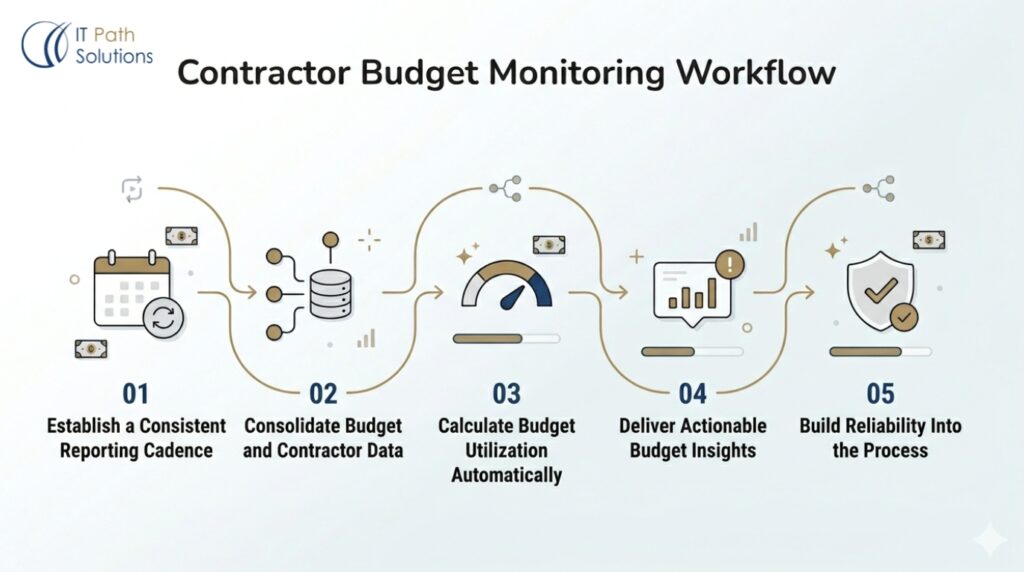
To help businesses track contractor spending before budgets get out of control, we designed a workflow that automatically monitors freelancer activity, calculates project spend, and alerts project owners when predefined budget thresholds are approaching.
Here’s an overview of how the workflow works behind the scenes.
Step 1: Establish a Consistent Reporting Cadence
The first challenge was determining when budget data should be reviewed. Most teams do not need real-time budget alerts, but they do need visibility before costs become a problem. We designed the workflow around recurring budget reviews that surface spending trends early enough for project managers to take action before a contractor or project exceeds its approved allocation.
Step 2: Consolidate Budget and Contractor Data
Budget information, contractor rates, project allocations, and work activity often exist in separate systems. To create a reliable monitoring process, the workflow brings together financial and operational data into a single view. This eliminates the need to manually compare spreadsheets, invoices, and time-tracking records every week.
Step 3: Calculate Budget Utilization Automatically
Once the data is consolidated, the workflow evaluates contractor spend against approved project budgets. Instead of requiring manual calculations, it continuously measures budget consumption and identifies projects that are trending toward their limits. This creates a consistent framework for budget oversight across all active contractors.
Step 4: Deliver Actionable Budget Insights
Raw numbers rarely help busy project managers. The workflow transforms budget data into clear summaries and alerts that highlight where attention is needed. Stakeholders receive visibility into project spending, remaining budget, and potential risks without having to review multiple systems manually.
Step 5: Build Reliability Into the Process
A budget monitoring system is only useful if it runs consistently. We included safeguards that help ensure reporting continues even when connected systems encounter issues. This reduces the risk of missed updates and helps maintain confidence in the reporting process over time.
The result is a workflow that gives agencies, operations teams, and project managers a clearer view of contractor spending while reducing the manual effort typically required to monitor project budgets.
What Changes When This Is Running
1. Time Saved
The weekly manual aggregation step is eliminated. For teams managing five or more contractors, that step typically takes one to three hours per week. The project lead receives a formatted summary without pulling any data. The summary appears on a fixed schedule whether or not anyone remembered to update the spreadsheet. For teams that have been relying on spreadsheets for freelancer expense tracking, this is the most immediate change they notice.
2. Better Accuracy
Calculations run on raw time-tracking API data, not on manually entered hours. The same logic runs every week with no variability based on who assembled the report or when. Budget caps and rates are stored in one Google Sheet and updated by one person, so there is a single source of truth for the numbers the workflow uses.
3. Faster Response
Threshold alerts fire automatically when a contractor reaches the configured percentage of their budget. The project lead does not need to check the tracker to discover a problem. The conversation about scope, rate, or extension can happen before the budget is exhausted rather than after. Rate changes or scope adjustments reflected in the Google Sheet are picked up in the next weekly run without any other action required.
4. Easier Reporting
Weekly summaries create an automatic audit trail of project spend over time. The Slack or email record serves as a lightweight reporting artifact for internal review or client billing conversations. Per-project breakdowns make it straightforward to compare actual spend against estimated project profitability.
One caveat: all of the above assumes contractors are logging hours consistently and correctly. If the time-tracking discipline on your team is poor, the workflow will save administrative time but will not improve budget visibility. The workflow aggregates and surfaces what is in the time-tracking tool. It cannot compensate for hours that were never logged.
Automate Contractor Budget Tracking in Minutes
Why spend hours building calculations, alerts, and reporting logic from scratch when the workflow is already prepared? Import the template into n8n, connect your preferred tools, and start monitoring contractor budgets with a system designed to improve financial visibility and reduce manual oversight.
How to Adapt This Workflow for Your Setup
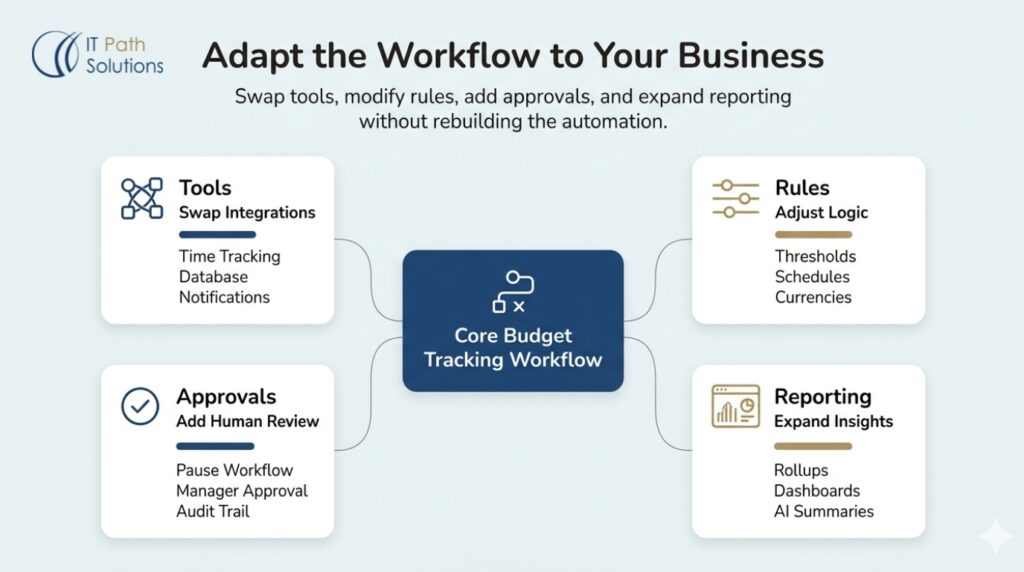
1. Tools You Can Swap or Add
Toggl Track and Clockify are the base time-tracking options. Harvest, Timely, or a custom webhook from a project management tool (Asana, Linear, or ClickUp) can replace either of them without changing the rest of the workflow.
Google Sheets can be replaced with Airtable, a Notion database, or a PostgreSQL or MySQL table for teams that already have a database with contractor records.
Slack and Gmail are the base output options. Microsoft Teams, Discord, or a webhook to an internal dashboard are valid alternatives. The output node is the last step in the workflow and is easy to swap without touching the logic that precedes it.
2. Business Rules You Can Modify
The 80% threshold is a starting point. Change it to any value that fits your team’s review cadence. You can also add a second threshold using a Switch node: for example, 50% of budget triggers an informational message, and 80% triggers an action-required alert. The calculation period is weekly by default. Daily is possible for high-burn short-duration projects by changing the Schedule Trigger interval.
For teams paying contractors in multiple currencies, add a currency conversion node before the spend calculation.
3. Approval Steps You Can Include
n8n’s Wait node can pause the workflow and hold it until a project lead responds to a Slack approval request. This is useful when the workflow detects a threshold breach and a budget extension requires explicit approval before work continues. All approval actions can be logged back to the Google Sheet for audit purposes.
4. Reporting and Analytics You Can Add
Add a monthly rollup workflow that aggregates weekly summaries into a per-project profit and loss row. Connect the output data to a Google Looker Studio dashboard for a visual view of budget tracking across all projects simultaneously. As an optional enhancement, you can add a Claude or GPT-4 node to generate a plain-English interpretation of the weekly summary, for example: Project X is on track; Project Y is at risk of overrun if the current burn rate continues. That optional node is the only part of this workflow that uses AI. The rest of the logic is rule-based automation.
What This Workflow Cannot Do and Where It Will Break
1. API Limits and Tool Restrictions
The Toggl Track free plan has API rate limits of 20 requests/hour. High-volume queries involving many contractors or long history pulls may require a paid plan.
n8n cloud plans have execution limits. When you hit your limit, active workflows are paused (disabled) until the execution count resets on the 1st of the month. No extra charges apply. Teams running this workflow daily rather than weekly should confirm their plan’s monthly execution allowance before switching the trigger cadence.
The Google Sheets API has read and write quota limits. These are only relevant for very large contractor rosters, typically 100 or more rows per project. Most teams will not hit this limit.
2. Data Quality and Accuracy
The workflow is only as accurate as the hours that contractors log. Late submissions, incorrect project tags, or forgotten time entries will produce inaccurate budget calculations. This is not fixable at the automation layer.
It requires a team agreement on logging cadence, for example, all hours logged by Friday end of day. Freelancer expense tracking at any level of automation depends on the underlying time data being clean. If an optional LLM node is added for natural language summaries, the language will reflect the calculated data. Inaccurate input produces inaccurate output regardless of how the summary is formatted.
3. Security, Permissions, and Compliance
The Google Sheet containing contractor names, rates, and budget caps is sensitive information. Restrict sharing to the project lead and finance contact only. n8n workflows running with API credentials should use environment variables rather than hardcoded keys in the workflow JSON.
GDPR and local data privacy laws may apply to contractor data stored in Google Sheets or passed through n8n cloud. Self-hosted n8n removes the cloud data residency concern.
Where Human Oversight Is Still Needed
Automated alerts notify. They do not act. A project lead still needs to decide whether to extend the budget, reduce scope, or have a direct conversation with the contractor. The workflow does not detect scope creep, unpaid overtime, or contractor work logged outside the agreed project. Monthly manual review of the Google Sheet (rates, caps, and active project flags) is recommended to make sure the workflow is operating on current data.
Download the n8n Workflow JSONWhat Is Included in the Download
The download includes two files. The first is a pre-configured n8n workflow JSON file containing all nodes described in this guide: Schedule Trigger, Google Sheets Read, time-tracking API node (Toggl Track or Clockify), Function node for spend calculation, IF node for threshold routing, output nodes for summary and alert delivery, and an Error Trigger node.
The second file is a Google Sheets template with the required columns: Contractor Name, Project, Agreed Rate, Budget Cap, Currency, and Active/Inactive flag.
API credentials are not included. You must add your own Toggl or Clockify API key, Google Sheets OAuth connection, and Slack or Gmail credentials before the workflow will run. The template is a starting configuration, not a production-ready deployment.
How to Use the Template
- Import the JSON into n8n: go to Workflows, select Import from File, and upload the JSON.
- Copy the Google Sheets template to your own Google account and populate it with contractor data.
- Connect credentials for each node: Toggl or Clockify, Google Sheets, and Slack or Gmail.
- Run the workflow manually once using the Test Workflow button to verify that data is being pulled and calculations are correct.
- Activate the Schedule Trigger for weekly automated runs.
Customizations described in the Customization Options section will require modifying the workflow after import. The JSON covers the base configuration exactly as described in this guide.
Need This Built or Customized for Your Team?
When a Template Is Not Enough
The base template covers a single time-tracking tool, a Google Sheets data source, and Slack or Gmail output. That covers most small team setups.
Teams with existing databases, multi-currency requirements, multi-tier approval workflows, or integrations with accounting tools like QuickBooks or Xero will need custom node configurations that go beyond what the template provides.
Teams managing 20 or more contractors across 10 or more simultaneous projects may also encounter data volume or API rate limit issues that are not present in the base configuration. That is the expected boundary of a generalized starting point, not a failure of the template.
How IT Path Solutions Can Help You Deploy It Properly
IT Path Solutions builds and deploys custom n8n workflows for product teams and agencies that need more than a template can offer. Specific work includes connecting workflows to existing databases, adding approval logic, integrating with accounting or invoicing tools, and setting up self-hosted n8n environments for teams with data residency requirements.
If your contractor roster, project structure, or tool stack requires changes to the base workflow, talk to the IT Path Solutions team about a custom workflow to scope what the build would involve.
Frequently Asked Questions
- How can I track freelancer spending against my project budget?
The most reliable approach is to connect a time-tracking tool such as Toggl Track, Clockify, or Harvest to an automated workflow that logs contractor hours against each client project and compares them with your approved budget. Manual spreadsheets may work when managing one or two freelancers, but they become difficult to maintain as teams grow. For agencies, consultants, and engagement managers, an n8n workflow that pulls data from a time-tracking API and compares it against a Google Sheets budget table provides a practical, low-cost way to monitor freelancer spending without adding another SaaS subscription.
2. What is project budget monitoring?
Project budget monitoring is the ongoing process of comparing actual project costs against the pre-approved budget throughout a project’s lifecycle. It differs from budget tracking, which records actuals as they occur, in that monitoring involves active review and response: identifying variances, investigating causes, and taking corrective action before costs exceed the approved limit. In a contractor or freelancer context, monitoring specifically means reviewing hours logged against agreed rates and flagging when any individual or project is approaching their cap.
3. How do you monitor a project budget?
The most effective method combines a structured data source (a spreadsheet or database containing contractor rates, budget caps, and project assignments) with an automated workflow that pulls actual hours from a time-tracking tool on a regular cadence, calculates spend per contractor and per project, and delivers a formatted summary to the project lead. Manual monitoring via spreadsheet review consistently misses threshold warnings before they become overruns.
4. What tools are used for project budget tracking?
Common options include Harvest (time and expense tracking with invoicing), Everhour (budget protection with automatic timer stops at ceiling), Wrike (project management with integrated budget tracking), and ProjectManager.com (lifecycle-level budget monitoring with reporting). For teams that prefer not to pay per-user SaaS fees, an n8n workflow connecting a time-tracking API to a Google Sheets budget table and a Slack or email notification system covers the core alerting and summary functionality of paid project budget tracking software.
5. What is the difference between budget tracking and budget monitoring?
Budget tracking is the mechanical process of recording actual costs as they are incurred: logging hours, calculating spend, and updating a running total. Budget monitoring is the analytical and decision-making layer on top of that data. It means reviewing variances, identifying trends, and taking action when costs deviate from the plan. In practice, most tools described as project budget tracking software perform both functions. An automated n8n workflow handles the tracking layer. The weekly summary it delivers enables the monitoring layer by giving the project lead the information they need to act before a variance becomes an overrun.

Keyur Patel
Co-Founder
Keyur Patel is the director at IT Path Solutions, where he helps businesses develop scalable applications. With his extensive experience and visionary approach, he leads the team to create futuristic solutions. Keyur Patel has exceptional leadership skills and technical expertise in Node.js, .Net, React.js, AI/ML, and PHP frameworks. His dedication to driving digital transformation makes him an invaluable asset to the company.
Related Blog Posts

AI Agent Error Triage: How to Automatically Classify, Diagnose, and Route AI Failures
How to Build n8n AI Chat Agent with RAG, Gemini & Qdrant