
How to Get a Google Maps API Key: Setup, Restrictions & Cost
Keyur Patel
September 12, 2025
13 min
Last Modified:
September 30, 2026
A Google Maps API key is a unique credential used to authenticate applications and websites that access Google Maps Platform services. You can create an API key through Google Cloud, enable the Maps Platform APIs your project needs, configure billing, and restrict the key to help prevent unauthorized use.
In this guide, you’ll learn how to get a Google Maps API key, enable the required APIs, configure key restrictions, find an existing key, understand Google Maps API pricing, and troubleshoot common API key errors.
What Is a Google Maps API Key?
A Google Maps API key is a unique identifier that authenticates requests made by your website or application to Google Maps Platform services. The key associates requests with a Google Cloud project so Google can identify usage and apply the appropriate billing and access controls.
Google Maps Platform supports APIs and SDKs for websites, Android and iOS applications, and server-side web services. Depending on your project, you may use a Google Maps API key with services such as Maps JavaScript API, Places API, Geocoding API, Routes API, or other Maps Platform products.
An API key does not automatically give an application access to every Google Maps service. You must enable the APIs your project requires and can restrict the key to specific applications and APIs.
For production applications, Google recommends restricting API keys to reduce the risk of unauthorized usage and unexpected charges.
Before you begin
To integrate Google Maps into your website or application, you’ll need to obtain Google Maps Platform credentials. This includes an API key that allows your application to securely communicate with Google’s mapping services. Each integrated map requires a unique API key to function properly.
Before you start using the Maps JavaScript API, you need a project with a billing account and the Maps JavaScript API enabled. To learn more, see Set up in Cloud Console.
Here is the simplest way to create google map API key and enable Billing for your project:
How to Get a Google Maps API Key
- Go to the Google Maps Platform
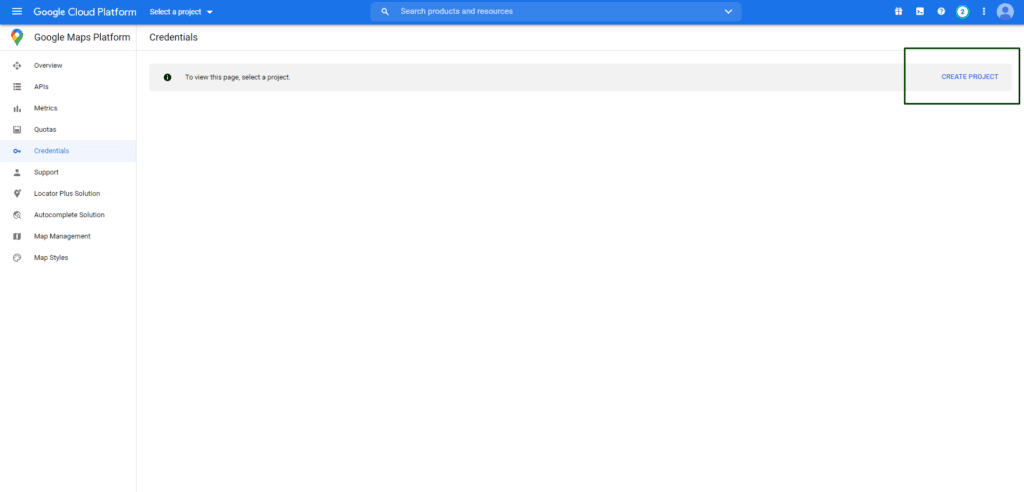
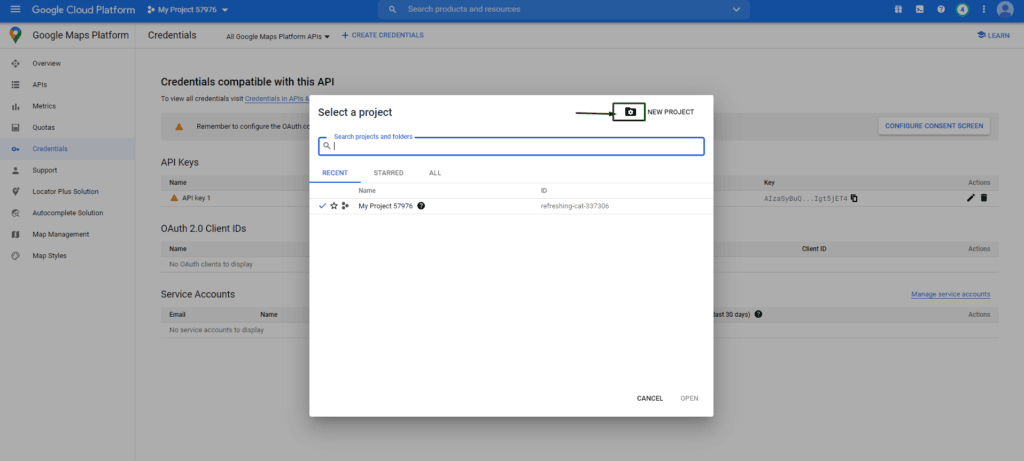
- If you want to use an existing project, please select it from the list.
Otherwise, select ‘CREATE PROJECT’ in the upper right corner and enter a project name.
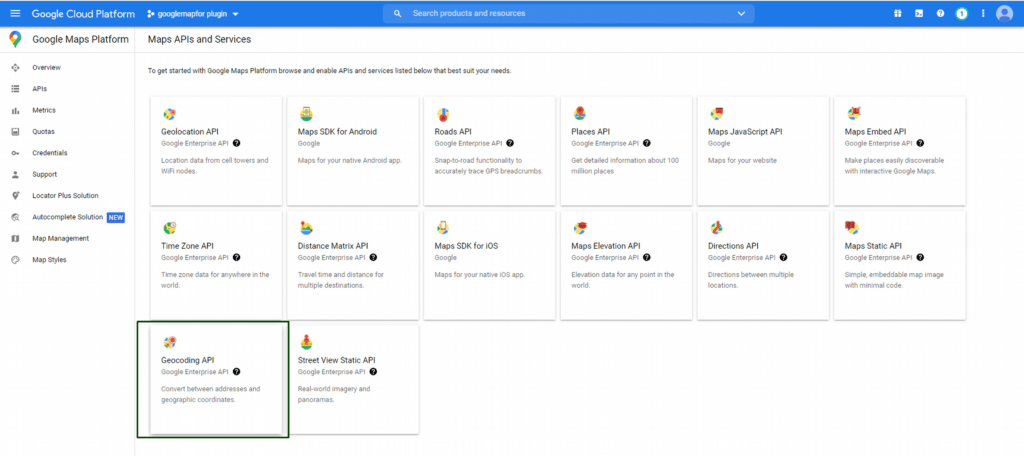
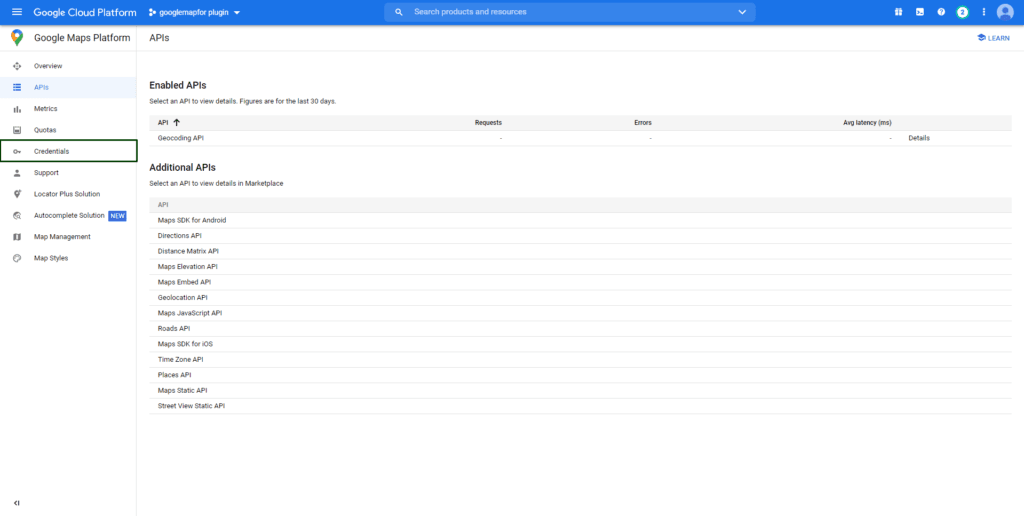
- You can now see the list of the APIs with description of each, click on the API whatever you want to create, in my example I am going to create a Geocoding API.
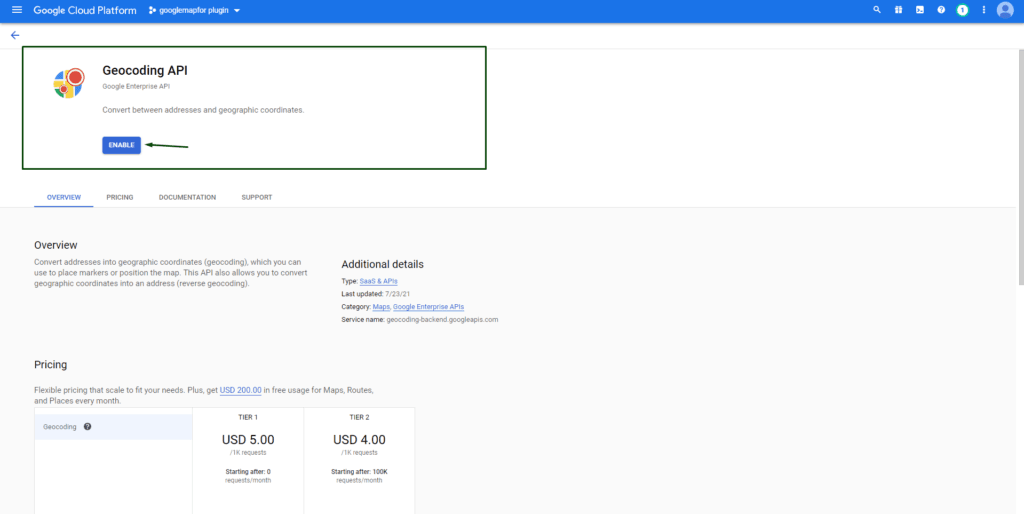
- To use the API you need to enable it.
- Once you’ve enabled your API, click on the Credentials to create credentials to get an API key.
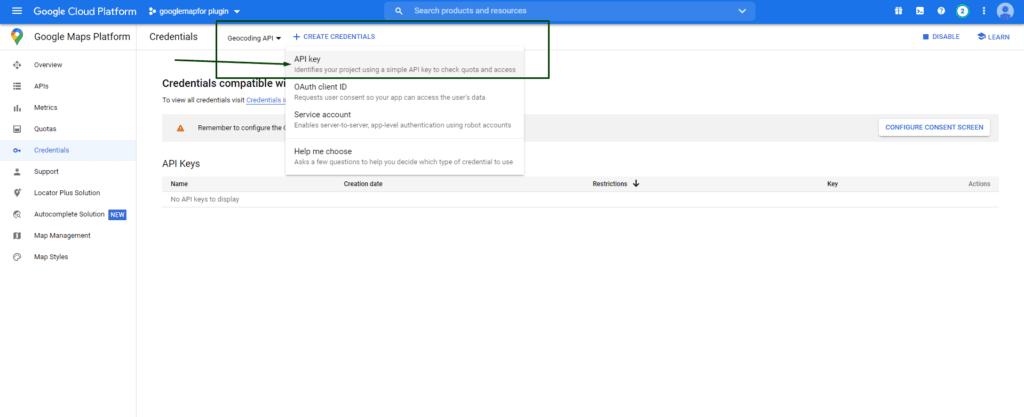
- Click Create credentials and select API key. You will see a new dialog that displays the newly created API key.
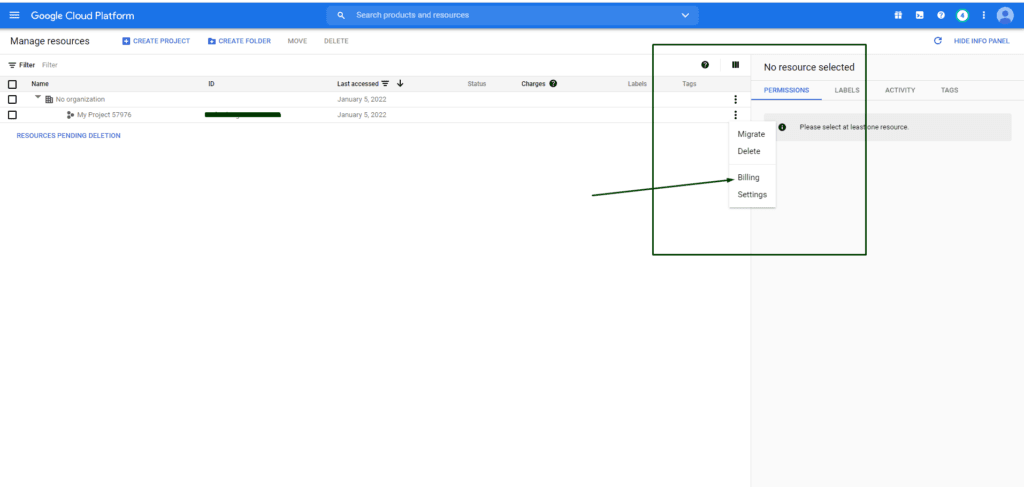
- Once you’ve generated an API key, the final step is to enable billing for that API key, as google charges for each API call. (https://developers.google.com/maps/billing/gmp-billing)
- Now you need Billing details to make Google API work on your website. (https://developers.google.com/maps/billing/gmp-billing)
View your existing API keys
- Go to the Google Maps Platform
- If the side menu is not visible, click the three-line (hamburger) menu icon
- Click ‘APIs & Services’ (API icon)
- Click ‘ Credentials’ (key icon)
If the above steps aren’t clean sufficient then please observe the educational video from the Google Maps Platform Team below. This video will show you the way to generate and limit API keys.
Is a Google Maps API Key Free?
Creating a Google Maps API key does not require you to purchase the key itself. However, Google Maps Platform services use usage-based pricing, so the cost depends on the products and amount of usage associated with your project.
Google currently provides free monthly usage for eligible Google Maps Platform SKUs. The amount of free usage depends on the product’s pricing category and SKU. Usage above the applicable free allowance is charged according to Google’s pricing structure.
The previous $200 monthly Google Maps Platform credit was replaced by free usage caps beginning March 1, 2025. Therefore, older articles that describe the Google Maps Platform as providing a recurring $200 monthly credit may contain outdated pricing information.
If you’re looking for a free Google Maps API key, you can create a key and use eligible services within their applicable free monthly usage allowances. Always check the current pricing for the specific API or SKU you plan to use
Can You Get a Free Google Maps API Key?
Yes. You can create a Google Maps API key without paying a separate fee simply to generate the credential.
However, a free API key does not mean that all Google Maps Platform usage is permanently free. Google uses a pay-as-you-go model, and eligible products have specific monthly free usage allowances. Usage beyond the applicable allowance can incur charges.
For example, a developer building a small website may stay within the free monthly usage available for the APIs they use, while an application with high traffic may generate billable usage.
Google also provides a separate Maps Demo Key for certain Maps JavaScript API prototyping scenarios. The Demo Key is intended for testing and prototyping rather than production use.
How Much Does a Google Maps API Key Cost?
There is no separate purchase price for creating a Google Maps API key. The cost comes from using Google Maps Platform services associated with the key.
Google Maps Platform follows a pay-as-you-go model. Pricing is based on billable events associated with individual product SKUs, and each SKU has its own applicable free monthly usage allowance and pricing.
Your Google Maps API cost can therefore depend on:
- Which API or SDK you use
- The number of billable events
- The applicable pricing category and SKU
- Whether your usage remains within the monthly free allowance
- Whether your account qualifies for additional programs or credits
- Your billing region and applicable pricing
Google also publishes separate pricing information for customers eligible for India pricing.
For accurate cost estimates, check Google’s current pricing information for the specific API or service you’re using rather than relying on a fixed price for a “Google Maps API key.”
Which Google Maps API Do You Need?
The Google Maps Platform includes different APIs and SDKs for different location-based functions. The right API depends on what you want your website or application to do.
Maps JavaScript API
Use the Maps JavaScript API when you want to add interactive, customizable maps to a website or web application.
It can be used for features such as:
- Interactive maps
- Markers
- Map controls
- Map styling
- Location visualization
- User interactions with maps
Google provides a Maps Demo Key for certain Maps JavaScript API prototypes, while production implementations require the appropriate account, billing, API configuration, and credentials.
Geocoding API
Use the Geocoding API when you need to convert geographic information between addresses and coordinates.
For example, your application could use geocoding to:
- Convert an address into latitude and longitude
- Convert coordinates into a human-readable address
- Process location data for mapping applications
The API requires the appropriate project setup and authentication method for your implementation.
Places API
Use the Places API when your application needs information about places, businesses, landmarks, or other locations.
Common use cases include:
- Finding places
- Searching for businesses
- Retrieving place information
- Displaying place details
- Building location search experiences
The exact APIs and libraries you need depend on the Places functionality and implementation you’re building.
Routes API
Use the Routes API when your application needs route and travel information.
Common use cases include:
- Calculating routes
- Finding travel times
- Calculating distances
- Comparing route options
- Building navigation-related experiences
Choose the appropriate Google Maps Platform routing service based on your application’s requirements.
Maps Embed API
Use the Maps Embed API when you want to place Google Maps content directly into a website using an embeddable map.
Google states that Maps Embed API usage is available at no charge, although Google still recommends restricting any API key used with it to prevent unauthorized use on other services.
Why to secure an API key:
When you use API keys on your applications it might publicly exposing your API keys can cause unauthorized spending in your account. To secure your API keys, follow these practices:
-
- Do not keep API keys in files inside your project’s source tree. If you keep API keys in files, hold the files out of the doors of your project’s source tree to assist make certain your keys do now no longer become part of your source code control system. This is specially essential in case you use a public source code control gadget consisting of GitHub.
- Do not use API keys directly in code. API keys that are used in code can be disclosed to the public. For example, you may forget to remove the keys from code that you share. Instead of embedding your API keys in your applications, store them in environment variables or in files outside of your application’s source tree.
- Set up application and API key restrictions. By adding restrictions, you can reduce the impact of a compromised API key.
- Delete unneeded API keys to reduce publicity to attacks.
Here is the simple steps to how you can secure your API key:
API key restrictions:
API keys are unrestricted by default. Unrestricted keys are insecure because they can be used by anyone from anywhere. For production applications, you should set both application restrictions and API restrictions.
API keys are unrestricted by default. Unrestricted keys are insecure due to the fact they may be utilized by all of us from anywhere. For production projects, you should set both application restrictions and API restrictions.
How to add API key restrictions:
- Navigate to the APIs & Services→Credentials panel in Cloud Console.
- Select the name of an existing API key.
Adding application restrictions
Application restrictions specify which web sites, IP addresses, or apps can use an API key. Add application restrictions based on your application type. You can only set one restriction type per API key.
Choose the restriction type based on the needs of your application.
- Use None for testing purposes only.
- Use HTTP referrers for API clients that run on a web browser, so that only the specified pages can call the API. These types of applications expose their API keys publicly, so we recommend using a service account instead. See the Adding HTTP restrictions section below for examples.
- Use IP addresses to limit API key access to certain IP addresses.
- Use Android apps for Android applications. This option requires adding your package name and SHA-1 signing-certificate fingerprint.
- Use iOS apps for iOS applications. This option requires adding at least one iOS bundle identifier to restrict API calls to specific iOS bundles.
Adding HTTP restrictions
API keys used by web applications should have HTTP restrictions. To add HTTP restrictions:
- Select HTTP referrers (web sites) in the Application restrictions section.
- Input at least one restriction in the Website restrictions section.
- If your domain supports both HTTP and HTTPS, both restrictions must be added separately.
- You can optionally use wildcard characters (*) for the subdomain and/or path.
Adding API restrictions
API restrictions specify which APIs can be called using the API key. All API keys used by production applications should have API restrictions.
To set API restrictions:
- In the API restrictions section, click Restrict key.
- Select all APIs from the dropdown that your API key will be used to access.
- Click Save.
Per project limits
You can create 300 API keys per project. This is a system limit, and cannot be changed using a quota increase request.
If more API keys are needed, they should be shared across multiple projects.
Conclusion
Creating a Google Maps API key is straightforward when your Google Cloud project, required APIs, billing, and key restrictions are configured correctly. Start by creating or selecting a Google Cloud project, enable the Google Maps Platform services your website or application needs, and generate an API key from the Credentials page. For production use, apply appropriate application and API restrictions to help protect your key from unauthorized usage.
Google Maps Platform follows a usage-based pricing model, with free monthly usage available for eligible services and charges applying when usage exceeds the applicable allowance. Before launching your integration, review the current pricing for the specific APIs you plan to use and monitor your project’s usage and billing.
Whether you need interactive maps, place search, geocoding, or routing functionality, choosing the right Google Maps API and configuring your API key properly can help ensure a reliable and secure integration. IT Path Solutions can also help businesses integrate Google Maps APIs into their websites and applications based on their specific requirements, explore our web development service or learn more about our custom software development solutions for tailored application requirements.
Frequently Asked Questions
What is a Google Maps API key?
A Google Maps API key is a unique identifier used to authenticate requests to Google Maps Platform services. It associates API usage with a Google Cloud project for usage and billing purposes.
How do I get a Google Maps API key?
Create or select a Google Cloud project, configure the required billing setup, enable the Google Maps Platform API you need, open the Credentials page, and select Create credentials → API key. You should then restrict the key before using it in production.
Is a Google Maps API key free?
Creating an API key itself does not have a separate purchase price. Google Maps Platform uses usage-based pricing, with specific free monthly usage allowances available for eligible SKUs. Charges can apply when usage exceeds the applicable free allowance.
Can I get a free Google Maps API key?
Yes. You can create a Google Maps API key without paying to generate the credential. However, whether your actual Maps Platform usage remains free depends on the service, SKU, and amount of usage.
How much does a Google Maps API key cost?
There is no separate fee for purchasing an API key. Google Maps Platform charges for applicable usage based on the relevant product SKU and billable events. Eligible SKUs include monthly free usage allowances.
Where can I find my Google Maps API key?
Open the Google Cloud console, select the relevant project, and go to Google Maps Platform → Credentials. Your API keys are listed there.
How do I restrict a Google Maps API key?
Open the API key from the Credentials page and configure Application restrictions and API restrictions. Application restrictions control where the key can be used, while API restrictions control which APIs can use it.
Which Google Maps API should I use?
Choose the API according to your use case. Maps JavaScript API is designed for interactive web maps, Geocoding API handles address and coordinate conversion, Places API provides place-related functionality, Routes API handles routing and travel information, and Maps Embed API is designed for embedding maps on websites.

Keyur Patel
Co-Founder
Keyur Patel is the director at IT Path Solutions, where he helps businesses develop scalable applications. With his extensive experience and visionary approach, he leads the team to create futuristic solutions. Keyur Patel has exceptional leadership skills and technical expertise in Node.js, .Net, React.js, AI/ML, and PHP frameworks. His dedication to driving digital transformation makes him an invaluable asset to the company.
Related Blog Posts
DevExpress Web Reporting: A Complete Guide to Browser-Based Reporting

Laravel vs Django vs NestJS: The 2026 Backend Framework Comparison